
Quickstart Guide
Follow these steps to get your coaching profile live and invite your first athlete.Step 1: Create Your Account
- Go to ironcoaching.app/signup
- Sign up with email or Google
- You’ll be redirected to the onboarding flow
Step 2: Complete Your Profile
During onboarding, you’ll set up:- Display name — shown on your public profile and marketplace listing
- Bio — tell athletes about your coaching philosophy
- Specialities — select from powerlifting, bodybuilding, CrossFit, and more
- Certifications — list your qualifications (one per line)
Step 3: Build Your First Program
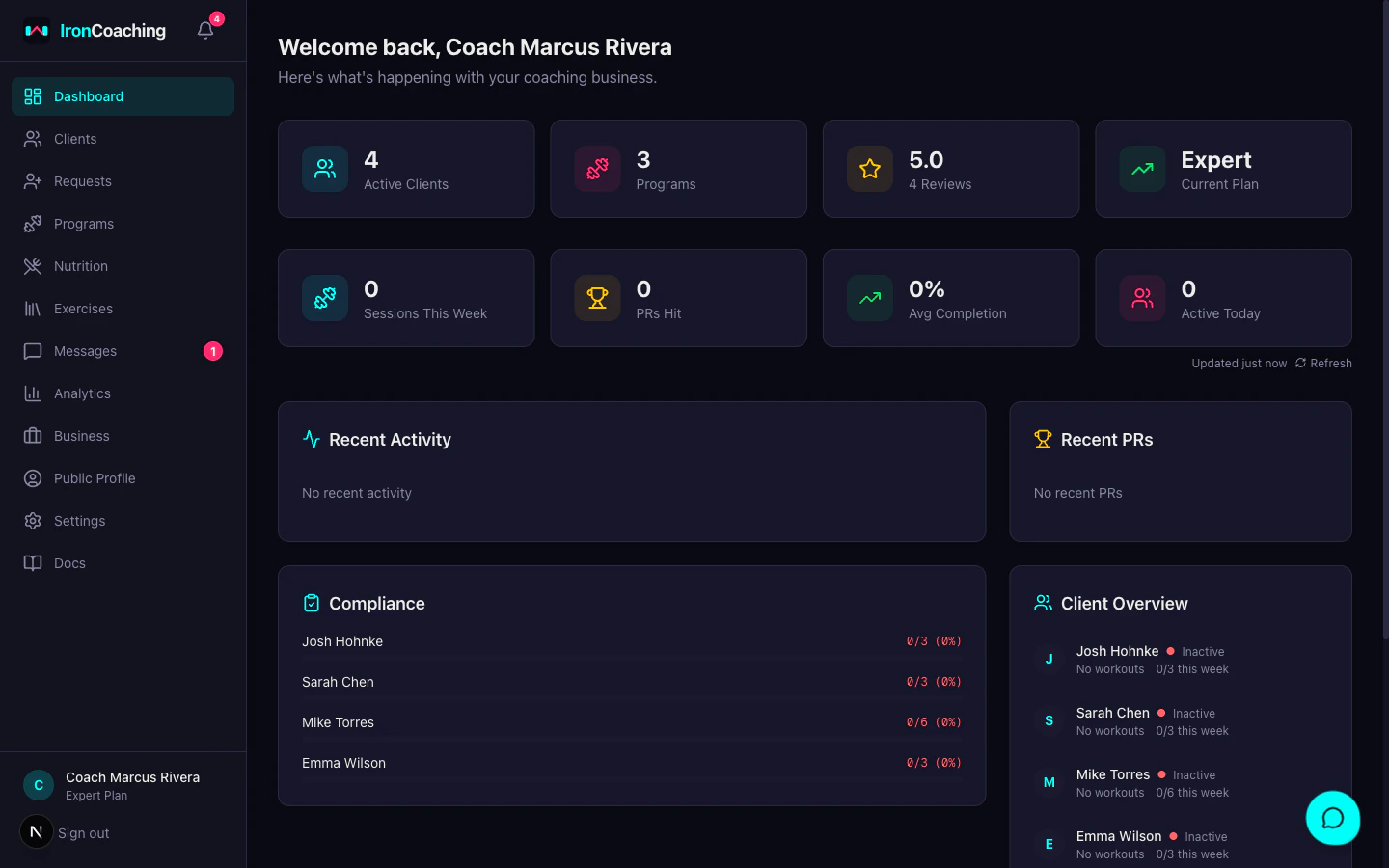
- Go to Dashboard > Programs > New Program
- Name your program and add a description
- Add training days (e.g., “Day 1: Upper Body”)
- Add exercises — search the exercise library for built-in exercises or type a custom name
- Set metric presets if needed (e.g., TMD for timed exercises, AMRAP for conditioning)
- Optionally group exercises into blocks for supersets or circuits
- Save — your program is now ready to assign
Step 4: Invite an Athlete
- Go to Dashboard > Clients
- Click Invite Athlete to generate a unique invite link
- Share the link with your athlete
- When they accept (via web or IronLedger app), they’ll appear in your client list
Step 5: Assign a Program
- Open a client’s profile from the Clients page
- Click Assign Program
- Select the program you built
- The program appears in your athlete’s IronLedger app
Assigning programs and viewing athlete data from IronLedger requires the Pro plan or higher. On the Basic plan, you can build and export programs but need to upgrade to assign them to athletes.
What’s Next?
- Building programs in detail — blocks, metric presets, video URLs
- Exercise library — browse 200+ exercises or add your own
- Managing your clients — goals, workouts, AI insights
- Upgrade to Pro or Expert